
 ViewSonic Library
 If you’ve ever connected an external monitor to a Mac only to find yourself squinting at blurry text or frustrated by inaccurate colors, you’re not alone.
That’s because Apple handles screen resolutions and color spaces in a completely unique way.
Whether a monitor is truly optimized for a MacBook comes down to a specific set of built-in capabilities, not just a physical connection.
To achieve optimal compatibility, you need a precise mix of HiDPI scaling, DCI-P3 wide color coverage, accurate EDID data and a Thunderbolt 4 or USB-C port with enough power to charge your laptop.
What Makes a Monitor Mac-Compatible?
What makes a monitor optimized for MacBook comes down to four core things: display quality, connectivity, EDID communication and macOS integration. Here’s a quick breakdown of what each requirement means and what it delivers.
| Requirement | What It Means | What It Enables |
|---|---|---|
| HiDPI Resolution | 4K or 5K at 24-27″ | Sharp text at any zoom level |
| DCI-P3 Color Coverage | 95%+ DCI-P3 and an accurate ICC profile | Visual compatibility with your MacBook screen |
| Correct EDID | Accurate monitor identification data sent to macOS | Seamless resolution options and color management |
| Thunderbolt 4 / USB-C | The right port type with enough bandwidth | A single-cable setup that charges your laptop |
| DDC/CI Communication | Monitor responds to macOS system commands | Integrated Mac controls for brightness and sleep |
Display Quality Requirements
macOS doesn’t handle resolution and color the same way Windows does. A monitor that looks great on a PC may not look as sharp on a Mac because macOS looks for specific pixel densities and direct color communication.
Resolution and HiDPI Scaling
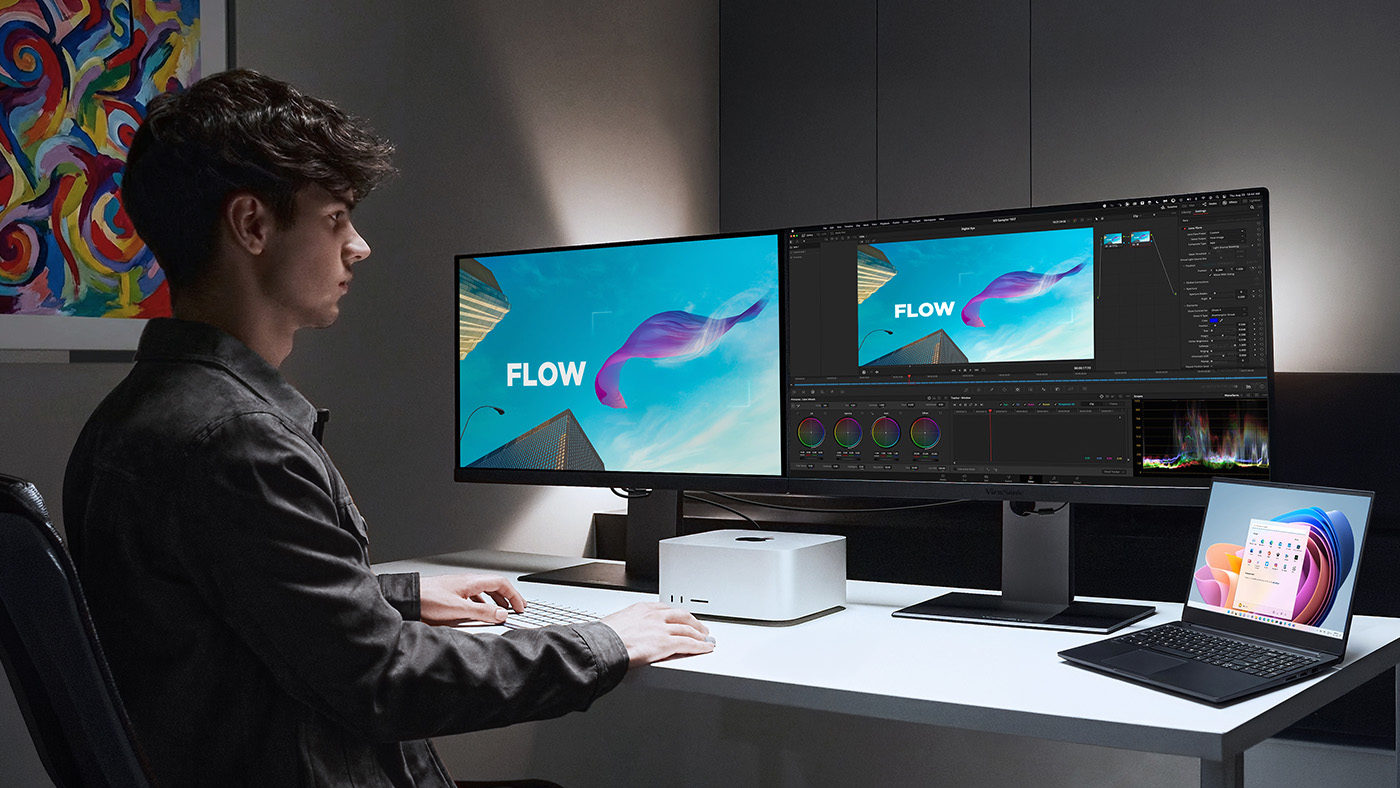
macOS uses a feature called HiDPI rendering, which is the technology behind Apple’s Retina displays. Instead of making text and icons tiny on a high-resolution screen, HiDPI runs your workspace at a comfortable layout size, like 2560×1440, but uses double the physical pixels to keep everything crisp.
A 27-inch 5K monitor (5120×2880) matches this system naturally. Because its resolution is exactly twice the size of that standard layout, macOS can use a clean 2x HiDPI scaling ratio. This gives you highly detailed, sharp text.
On a 4K monitor, the math doesn’t line up as an exact double. To show you that same comfortable layout size, macOS has to use fractional HiDPI scaling. This means the system renders the image at an even higher resolution and then shrinks it down to fit the screen. The result still looks good, but it can cause a slight drop in sharpness compared to a native 2x display.
Color Space and DCI-P3 Coverage
Ever since 2016, Macs have used the Display P3 color space, which shows a much wider range of colors than standard sRGB. macOS manages colors for each display you plug in, translating content from its original color space to match your screen’s profile. Your monitor has to accurately tell macOS what it can do, or that translation completely breaks down.
- ICC Color Profile Communication: The monitor has to broadcast its actual color space to macOS. Without an accurate ICC profile, macOS just assumes it’s an sRGB monitor, leaving your colors looking washed out next to your MacBook screen.
- Pantone Validation: Independent testing has certified these monitors to match Pantone® Matching System colors accurately. Every ViewSonic® VP ColorPro monitor is Pantone Validated.
If you want reliable color accuracy for your MacBook, aim for at least 95% DCI-P3 coverage.
EDID: How macOS Identifies Your Monitor
Think of EDID as a digital handshake. It’s a block of data your monitor sends to your Mac the second you plug it in, telling macOS its native resolution, supported refresh rates, color spaces and physical dimensions.
If that EDID data is broken or incomplete, things go sideways fast. You’ll get the wrong resolution options, broken color management because macOS doesn’t know the screen supports P3, a monitor that isn’t detected at all or unreliable sleep and wake behavior.
Connectivity and Power Requirements
Your choice of cable decides exactly how much bandwidth, power and data your monitor can handle. Not all USB-C ports or cables are built the same, and those differences can make or break your Mac setup.
Connection Standards: Thunderbolt 4 vs. USB-C vs. HDMI
Thunderbolt 4 is the gold standard for modern Macs. The exact same port that charges your laptop can carry 40 Gbps of data and run a 5K display at the same time.
USB-C with DisplayPort Alt Mode works fine for a single screen, but it can’t support daisy chaining on a Mac. This is a major factor for Mac compatibility because macOS doesn’t support standard USB-C daisy chaining technology. If you want to connect a second independent monitor directly to your first display, you must use a Thunderbolt 4 connection.
In contrast, HDMI requires an adapter and only sends video.
For a deeper look, check out our guide on USB-C vs. Thunderbolt for Mac monitors.
| Feature | Thunderbolt 4 | USB-C (DP Alt Mode) | HDMI |
|---|---|---|---|
| Max Bandwidth | 40 Gbps | Up to 20 Gbps | Video signal only |
| Max Resolution | 5K at 60Hz | 4K at 60Hz (depends on the USB-C version) | 4K at 60Hz |
| Power Delivery | Up to 100W | Up to 100W | None |
| Data Transfer | Full PCIe and USB bandwidth | Reduced bandwidth to support video and data | No |
| Daisy Chaining (with Mac) | Yes, up to 2 monitors | No | No |
| Native MacBook Port | Yes | Yes | No (needs a MacBook adapter) |
| Single-Cable Setup | Video, data and power on one cable | Video, data and power | Video only with a separate charger required |
Power Delivery: Charging Your MacBook
A truly compatible monitor should charge your MacBook through the same cable that handles your video. That power output has to be high enough to keep your battery topped up while you work. If a monitor delivers less power than your MacBook uses, your battery will actually drain even when the charging icon is on screen.
Select ViewSonic® VP monitors deliver 100W over Thunderbolt 4. That completely covers any MacBook Air and charges the 14-inch MacBook Pro at top speed. If you’re running a 16-inch MacBook Pro, it’ll charge a bit slower when you’re pushing the machine hard, but your battery won’t drain.
Cable Certification
Don’t grab just any cable. Uncertified options might drop below the full 40Gbps bandwidth, fail to deliver enough power or cause screen flickering.
Stick to cables with Intel’s official Thunderbolt 4 certification logo and a 100W power rating.
macOS Integration Requirements
True Mac compatibility goes way beyond display quality and port types. Your monitor also needs to respond to macOS system commands and support the day-to-day shortcuts you rely on.
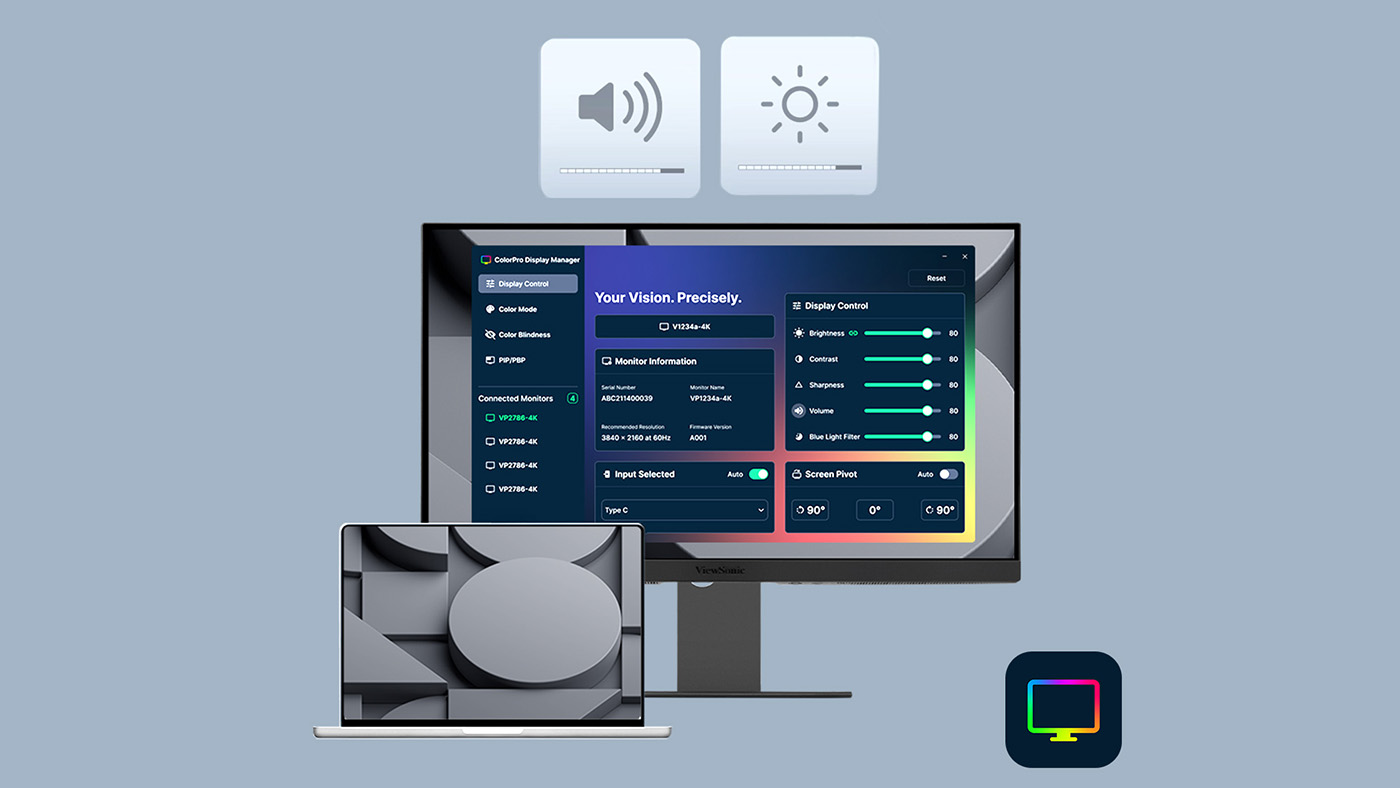
Display Communication Protocols: DDC/CI and Sleep/Wake
DDC/CI is the protocol that lets macOS talk directly to your monitor over your video cable. It’s what allows you to use your Mac’s function keys to control brightness and volume through the ColorPro® Display Manager app, and it handles two important behaviors:
- Brightness control: macOS changes your screen’s brightness using DDC/CI commands. Without this feature, your keyboard’s brightness keys won’t affect your external monitor, forcing you to use the physical buttons on the monitor instead.
- Sleep and wake: When your Mac goes to sleep, it tells your monitor to do the same. Screens that don’t handle this right will stay on when your Mac sleeps, freeze up when it wakes or randomly go black.
Multi-Monitor Support and Daisy-Chaining
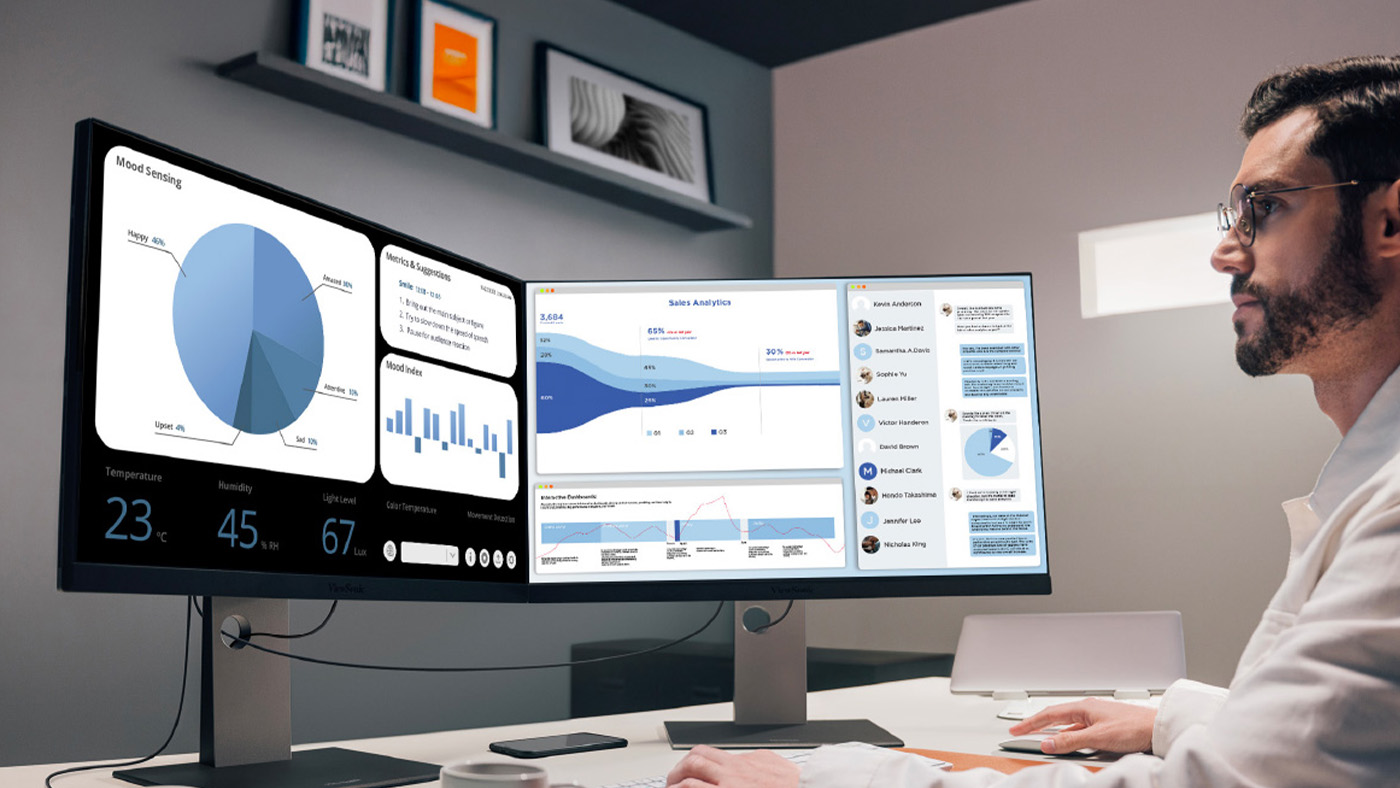
Thunderbolt daisy chaining lets you run a second monitor straight out of the first one, using just a single cable plugged into your Mac.
Select ViewSonic ColorPro® monitors support dual 4K or dual 5K daisy chaining over Thunderbolt 4. The VP2788-5K can drive two 5K monitors from just one Mac Thunderbolt port. The VP2488-4K, VP2776T-4K and VP3276T-4K handle dual 4K daisy-chain setups. See our guide on connecting multiple monitors to a MacBook Pro for a step-by-step walkthrough.
Built-In USB Hub
ViewSonic Thunderbolt monitors double as built-in USB hubs. You can plug your keyboard, mouse, external drives and card readers directly into the screen and route everything through a single Thunderbolt cable. Plug in your laptop and your entire setup comes online instantly. Unplug it and everything disconnects cleanly.
Ergonomics
Adjusting your height, tilt, swivel and pivot lets you set up the screen for your posture. While this isn’t a strict technical requirement, it completely changes how comfortable you’ll feel during long work sessions.
ViewSonic Mac-Compatible Monitors
Select ViewSonic® VP ColorPro Thunderbolt monitors are built to meet every requirement covered in this guide. The four monitors listed below share these standard baseline features:
- Thunderbolt 4 with 100W charging
- Tested EDID for reliable macOS recognition
- Full DDC/CI support for ColorPro Display Manager
- Pantone Validated color accuracy
- 98% to 99% DCI-P3 coverage
- Full ergonomic adjustments: height, tilt, swivel and pivot
- Built-in USB hub
- Three-year limited warranty
VP2788-5K: 27” 5K ColorPro Monitor
The VP2788-5K is designed for Mac users who want true Retina quality on a bigger screen. With a pixel density of 218 PPI, this 5K IPS monitor matches the sharpness of a MacBook Pro display, keeping everything consistent when you look between the two screens. Its dual 5K daisy chaining means you can run two VP2788-5K monitors from just one Mac Thunderbolt port.
- Panel: 27-inch IPS, 5K (5120×2880), 218 PPI, 60Hz and HDR400
- Color: 99% DCI-P3, 100% sRGB and Pantone Validated
- Connectivity: Thunderbolt 4 with 100W power delivery, dual 5K daisy chain, HDMI, DisplayPort and a USB hub
Learn more about the VP2788-5K
VP2488-4K: 24” 4K ColorPro Monitor
The VP2488-4K gives you strong pixel density without taking over your whole desk. At 24 inches, this 4K screen hits 184 PPI, giving you sharp text and clean HiDPI scaling in a compact footprint. It supports dual 4K daisy chaining too, so you can wire two of them together from a single Mac port.
- Panel: 24-inch IPS, 4K (3840×2160), 184 PPI and 60Hz
- Color: 98% DCI-P3, 100% sRGB and Pantone Validated
- Connectivity: Thunderbolt 4 with 100W power delivery, dual 4K daisy chain, HDMI, DisplayPort and a USB hub
Learn more about the VP2488-4K
VP2776T-4K: 27” 4K ColorPro Monitor with Ethernet Docking
The VP2776T-4K turns your monitor into a full single-cable docking station. The built-in RJ45 Ethernet port routes a wired network connection straight through the Thunderbolt cable to your Mac. That means you can skip the extra adapters and avoid spotty Wi-Fi during video calls or large file uploads.
- Panel: 27-inch IPS, 4K (3840×2160), 60Hz and HDR400
- Color: 98% DCI-P3, 100% sRGB and Pantone Validated
- Connectivity: Thunderbolt 4 with 100W power delivery, RJ45 Ethernet, dual 4K daisy chain, HDMI 2.1, DisplayPort, USB hub and dual speakers
Learn more about the VP2776T-4K
VP3276T-4K: 32” 4K ColorPro Monitor with Ethernet Docking
The VP3276T-4K gives editors, engineers and designers serious screen real estate without adding to the cable clutter. This 32-inch 4K screen gives you plenty of breathing room for long video timelines, layer panels and side-by-side apps. Just like the 27-inch model, it features RJ45 Ethernet and a complete USB hub to connect your whole desk through one cable.
- Panel: 32-inch IPS, 4K (3840×2160), 60Hz and HDR400
- Color: 98% DCI-P3 and Pantone Validated
- Connectivity: Thunderbolt 4 with 100W power delivery, RJ45 Ethernet, dual 4K daisy chain, HDMI, DisplayPort, USB hub and VESA mounting
Learn more about the VP3276T-4K
ViewSonic ColorPro Mac Monitors at a Glance
This side-by-side comparison shows exactly how ColorPro Thunderbolt monitors handle these Mac compatibility requirements.
| Feature | VP2488-4K | VP2788-5K | VP2776T-4K | VP3276T-4K |
|---|---|---|---|---|
| Screen Size | 24″ | 27″ | 27″ | 32″ |
| Resolution | 4K (3840×2160) | 5K (5120×2880) | 4K (3840×2160) | 4K (3840×2160) |
| Thunderbolt | TB4 (40 Gbps) | TB4 (40 Gbps) | TB4 (40 Gbps) | TB4 (40 Gbps) |
| Power Delivery | 100W | 100W | 100W | 100W |
| DCI-P3 Coverage | 98% | 99% | 98% | 98% |
| Pantone Validated | Yes | Yes | Yes | Yes |
| Daisy Chain | Dual 4K | Dual 5K | Dual 4K | Dual 4K |
| RJ45 Ethernet | No | No | Yes | Yes |
| HDMI Input | Yes | Yes | Yes | Yes |
| Warranty | 3 years | 3 years | 3 years | 3 years |
For more detail on the VP series lineup, see the ViewSonic ColorPro for Mac monitor page.
Common Mac Compatibility Problems Explained
Wondering why your current screen is acting up? When a monitor doesn’t check all the technical boxes, you run into specific, predictable side effects. Here’s what’s usually going on behind the scenes.
Display Quality Problems
- Blurry text on a 4K screen: Your monitor’s EDID is feeding the wrong data to macOS, causing it to skip HiDPI mode. Make sure your monitor has tested EDID for macOS. Go to System Settings, click Displays and check for a Retina or “More Space” scaling option.
- Washed-out colors compared to your MacBook: The monitor isn’t reporting its DCI-P3 color capabilities correctly, so macOS defaults to sRGB. You need a screen with properly configured ICC profiles and at least 95% DCI-P3 coverage.
- Oversaturated colors: macOS is sending wide-color P3 content to a display it thinks is sRGB, or the ICC profile is misconfigured. Double-check that your display’s profile is loaded correctly and recognized by macOS.
Connectivity and Power Problems
- Battery drains even though it says it’s charging: Your monitor’s power delivery is too low for your laptop model. Check the wattage. MacBook Pro’s 14-inch models need at least 67W to charge, while their 16-inch models require a minimum of 100W.
- Monitor isn’t detected: This usually comes down to an EDID mismatch or a cable that isn’t certified for Thunderbolt. Swap it out for a certified Thunderbolt 4 cable.
- Slow file transfers from drives plugged into the monitor: Your monitor’s hub is running on USB-C instead of Thunderbolt. USB-C hubs divide up bandwidth, making them much slower than Thunderbolt. Plug fast external drives directly into a Thunderbolt port.
Workflow Integration Problems
- Screen won’t wake from sleep: The monitor isn’t handling DDC/CI sleep and wake commands correctly. Look for a monitor with tested macOS DDC/CI support. ViewSonic tests all VP models for this.
- Keyboard brightness keys don’t work: DDC/CI communication is missing or broken on the monitor. Install ColorPro Display Manager or switch to a monitor with native DDC/CI support.
- Can’t get a second monitor to daisy-chain: Either your Mac chip has hit its display limit or your first monitor lacks a Thunderbolt passthrough port. Confirm your monitor has an outbound Thunderbolt port.
Find a Mac-Compatible Monitor With ViewSonic
These four ViewSonic ColorPro monitors are built for MacBook users who need accurate color on an external screen that matches their display. Each delivers Thunderbolt 4 connectivity, tested EDID, Pantone Validated color accuracy, 100W power delivery and a 3-year warranty.
Take a look at the full ViewSonic Mac monitor lineup or go straight to the model that fits your workflow:
- VP2788-5K (27-inch 5K, 218 PPI and dual 5K daisy chaining)
- VP2488-4K (24-inch 4K, compact footprint and dual 4K daisy chaining)
- VP2776T-4K (27-inch 4K and RJ45 Ethernet docking)
- VP3276T-4K (32-inch 4K, RJ45 Ethernet and an expanded workspace)
For more on choosing the right Mac monitor for your setup, see our dedicated guides on the best monitors for MacBook Pro, monitors for MacBook Air and monitors for Mac mini.
Frequently Asked Questions
It means the screen works with macOS’s HiDPI rendering system, sends accurate color data so the OS can manage your display correctly and uses DDC/CI so you can use your keyboard to adjust brightness and control sleep cycles. If you buy a screen that just plugs in without these features, you’ll run into display quality and integration problems.
A basic USB-C connection with DisplayPort Alt Mode will pass video and handle charging. But you’ll miss out on daisy-chaining multiple screens, high-speed file transfers and full docking station functionality. For a single screen with no extra gear, USB-C gets the job done. If you want a clean single-cable setup with fast external storage and multiple monitors, you need Thunderbolt 4.
macOS is built from the ground up for high-density Retina displays. A standard 1080p monitor simply doesn’t have enough physical pixels for the operating system to trigger its HiDPI scaling feature. Because the pixel density is too low, macOS disables scaling completely, which leaves text and menus looking pixelated, jagged and soft. To get crisp text on a Mac, you need the higher pixel density of a 4K or 5K screen.
It matters if your work involves color-critical output: print design, photography, product imaging or packaging. Pantone Validation means the monitor has gone through independent third-party testing to match Pantone Matching System colors accurately. Every ViewSonic VP monitor carries this certification.
Yes, with an adapter or a direct cable if your Mac has an HDMI port. You’ll lose single-cable power delivery, USB data hub features and the clean setup that comes with Thunderbolt. HDMI is fine for a basic second screen, but it’s not a substitute for Thunderbolt in a desk setup.
Think of EDID as your monitor’s digital resume. It’s a burst of data the screen passes to your Mac when you plug it in, sharing its native resolution, refresh rate limits and color profiles. Bad EDID data means macOS can’t set up the display correctly, leading to wrong resolution options, broken color mapping or sleep problems. ViewSonic tests every VP series monitor to make sure EDID communication is accurate with macOS.
The hard limit comes down to your specific Mac chip, not the screens themselves.
Base M1 and M2 MacBook Airs only support a single external screen. The M3 MacBook Air can support up to two screens, but only if you keep the laptop lid closed. Upgrading to a Pro chip gives you native support for two external displays with the lid open, while a Max chip can handle up to four.
Resolution and refresh rates factor in too. Sharper, faster screens consume more bandwidth, which can reduce the total number of displays your chip can handle at once. A daisy-chain setup will keep your desk clear of cable clutter, but your Mac’s chip always dictates the final limit.
Comparative claims are based on specific features and publicly available manufacturer specifications as of the date of publication and are not intended to represent a comprehensive evaluation of all product attributes. Actual performance, compatibility, and user experience may vary depending on system configuration, network conditions, usage environment, and other factors. Any references to competitors’ products or trademarks are for identification purposes only and do not imply endorsement, affiliation, or sponsorship by their respective owners. Programs, pricing, specifications, and availability are subject to change or cancellation without notice. Corporate names and trademarks stated herein are the property of their respective companies. Copyright © 2026, ViewSonic Corporation. All rights reserved.
The post What Makes a Monitor Mac Compatible? Features and Specs to Know appeared first on ViewSonic Library.
 Bowles Rice LLP
 Geeky Gadgets
  Learn Something Interesting
  TechRepublic
 Academy of International Business
  NewsBlaze News